
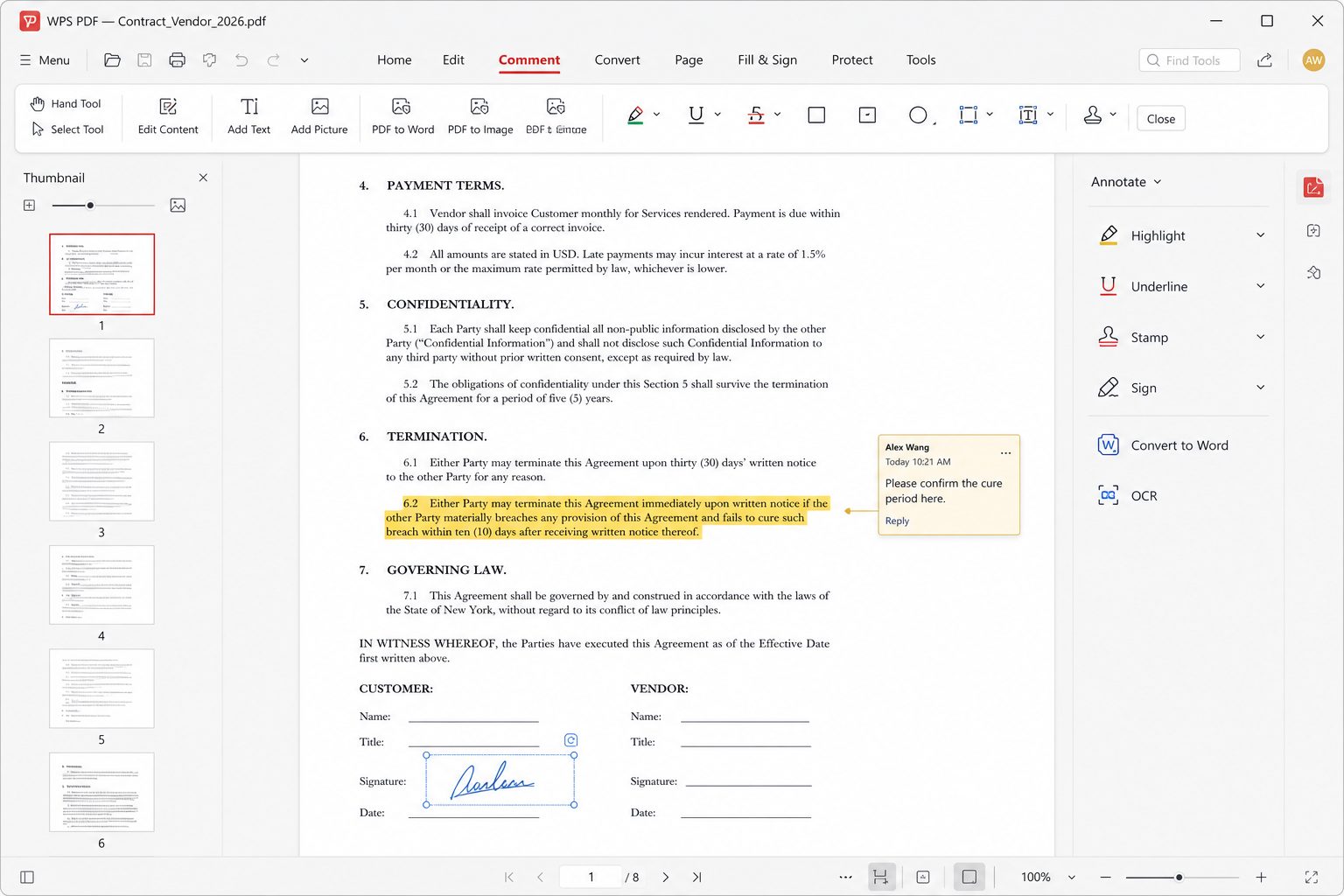
- Open the PDF in WPS PDF (not in Writer first).
- Use Convert → Word / DOC. Wait. Do not type on the PDF while it converts.
- Save As a new DOCX. Keep the original PDF read-only.
- In Writer, show formatting marks. Tables often become text boxes; convert or rebuild the worst ones.
- Re-apply Heading styles; do not manually bold 40 fake headings.
- If the PDF was a scan, run OCR first, then convert. Garbage OCR in, garbage DOCX out.
When to give up: magazine-style multi-column pages, vector logos sitting on photos, filled government forms. Rebuild the form in Writer or keep the PDF and use fill/sign.
Born-digital vs scan
A PDF Word itself exported will convert cleaner than a scan of a printout of a fax. If you can get the original DOCX, do that. Conversion is a last resort, not a lifestyle.
Government forms
Filled AcroForms should be filled in PDF, not converted. Conversion explodes field widgets into floating boxes. If the agency emailed a Word form, use Writer. If they emailed a locked PDF, use the PDF fill tools or print, wet-ink, scan — follow their instructions, not a YouTube “unlock PDF” ad.
QA pass (15 minutes)
Styles pane: is Normal actually Normal? Are there 40 styles named “Style1”? Headings in the navigation pane? Tables: can you tab through cells? Images: still there, still captioned? Page count vs PDF page count — if it doubled, you have extra breaks.
Multi-column PDF
Converters read left-to-right through columns and produce salad. Rebuild, or keep PDF. A two-column academic paper is the classic failure. Abstracts in a box are second.