
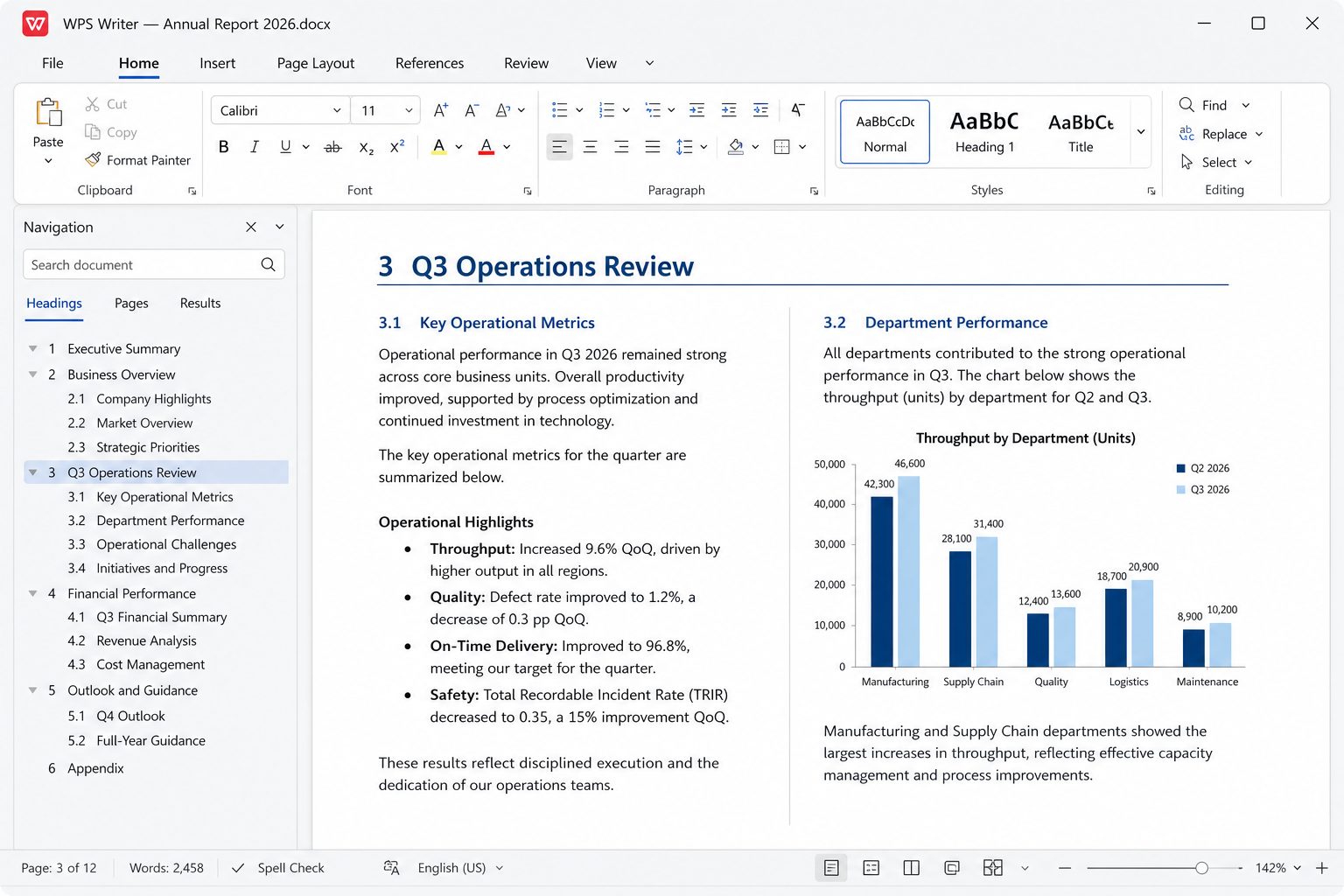
What you can open and save
Writer reads and writes Microsoft Word formats including .doc, .docx, .docm, .dot, .dotx, .dotm, plus native .wps/.wpt, RTF, TXT, HTML/MHT, and XML. Default to DOCX when you collaborate with Word users.
Daily features that matter
- Ribbon + styles. Heading 1/2, Normal, Title — same mental model as Word, which is why switchers stop asking “where is everything?” after a day.
- Track changes & comments. Official feature list includes collaboration tools (track changes, insert comments). Good enough for student papers and light legal redlines; heavy law-firm workflows still standardize on Word.
- Mail merge. Spreadsheet or CSV as a data source for letters and labels. Test a 10-row sample before a 2,000-row job.
- PDF export. Built in — you do not need a print-to-PDF driver for ordinary documents.
- Encryption. Password to open / permission to edit, as documented in Kingsoft’s requirements article.
What users report
Public reviews praise the familiar layout and the fact that DOCX “just opens.” Complaints cluster around ads in the free build, pressure to use WPS Cloud, and missing power-user niceties (for example, pinning personal templates the way Word does on the New screen — a Trustpilot theme). If you live in custom .dotx templates, keep them in a folder you control and open via File Explorer until you learn WPS’s template manager.
Field tips
- Turn off “set as default” for DOC/DOCX during setup if Word is still your office standard.
- Use styles, not manual font size jumps — conversion fidelity is better.
- Avoid embedding 200 MB of uncompressed images; compress pictures before you email.
- For citations and theses, confirm your university still wants Word. Some departments reject anything else on principle, even if the DOCX is valid.
Need the keyboard map? Writer shortcuts cover Ctrl+K links, F12 Save As, and the usual suspects.
Styles are the whole game
If you format a 40-page report by selecting paragraphs and clicking 16 pt Bold, two things happen: the file gets heavier, and the next person who opens it in Word sees a mess of direct formatting. Use Heading 1 / Heading 2 / Normal. Then Table of Contents, Navigation pane, and PDF bookmarks all fall out for free. WPS copies Word’s model here; the muscle memory transfers.
To fix an inherited disaster: select all → clear direct formatting (under Home / styles tools on your build) → reapply Heading styles to real titles only. Do not “make it look like a heading” with color and size.
Track changes and comments — what holds, what slips
Insert Comment and Track Changes are on the official feature list. For a thesis supervisor leaving 30 balloons, you will be fine. For a law firm with nested balloons, custom balloons, and content controls, round-trip in Word before you promise the client. Always turn Track Changes off before you send a “final” PDF, then inspect the PDF for leftover revision marks.
Mail merge without a 2,000-row surprise
- Put data in Spreadsheet or a CSV with a header row: First, Last, Email, Amount. No merged cells in the header.
- Save as XLSX (not ET) if Writer and Spreadsheet versions might differ.
- In Writer, start Mail Merge, connect the sheet, insert fields into a copy of the letter — never the only copy.
- Preview record 1, record 10, and the last record. Dates and currency are where locales explode (1/2/2026 vs 2 Jan).
- Output to a new document or PDF. Keep the template empty of real names.
Pictures, watermarks, headers
Compress images before insert (email-size, not “original from a 12 MP phone”). A 40 MB DOCX that is “just text plus photos” will crawl on a 4 GB laptop. Headers/footers: put page numbers in the footer style, not as a floating text box on each page — floating boxes duplicate when you add a section break. Section breaks are how you get different first-page headers; test print pages 1 and 2.
When Writer dies mid-sentence
On relaunch, accept AutoRecover if the pane appears. If not: look in the AutoRecover folder you set, then in the document’s folder for temp files. Cloud-only copies are not a backup if the last sync failed. Save a dated local copy before big edits. Windows File History / macOS Time Machine beat any office suite’s recover button.
Print and PDF export
For a freeze-frame you will take to a copy shop, Export PDF from Writer (free path) rather than printing to a virtual printer that re-rasterizes fonts. Check document language for screen readers if you care about accessibility. Booklet print depends on the printer driver more than WPS — print 4 pages as a test.
Five ways a “perfect” Word file still breaks
- Custom XML / content controls from Word forms
- Embedded Excel charts that were OLE objects
- Equations from older OMML vs pictures of equations
- Fonts you do not have (Calibri on Linux is the classic)
- Macros in .docm — WPS is not a VBA twin
Keyboard map: Writer shortcuts. Templates: how not to look like stock. Comparison: vs Word.
From a blank page to a document someone else can use
Open Writer. File → New → Blank. Ignore the template mall until you have styles in your fingers. Set the paper size (A4 vs Letter) before you write; changing it later reflows every figure. Set margins your school or client named — “1 inch all around” is a real instruction, not a vibe. Then type three lines of nonsense, apply Heading 1 to the first, Heading 2 to the second, Normal to the third. If those three look right, the next 40 pages will too.
Where the ribbon actually hides the useful stuff
- Home: font, paragraph, styles, find. Live here 80% of the time.
- Insert: table, picture, header/footer, page number, break, hyperlink, bookmark, caption.
- Page Layout / Layout: margins, orientation, columns, section breaks, hyphenation.
- References: table of contents, footnotes. Citation managers are weaker than Word’s ecosystem — plan accordingly.
- Review: spelling, language, track changes, comments, protect.
- View: print layout vs web, rulers, navigation pane. Turn the navigation pane on. Clicking headings beats scrolling.
Lists and numbering that do not explode
Use the multilevel list button, not hand-typed “1.” “1.1.” “a)”. Hand-typed numbers will not renumber when you insert a section. If numbering restarts at 1 in the middle of a chapter, you accidentally created a new list. Place the cursor in the broken paragraph, pick “continue numbering,” or apply the same list style as the previous Heading 1 block. Legal outlines with 1.1.1.1 need a style set you test by inserting a heading in the middle and confirming everything shifts.
Tables in Writer are not Spreadsheet
A three-column comparison belongs in a Writer table. A 400-row budget does not — that is Spreadsheet, then paste a summary or embed. In Writer: insert table, use header row repeat if it spans pages (table properties), do not merge ten cells “for design” if you will sort later (you cannot really sort a Writer table like Excel). Tab out of the last cell to add a row. Borders: one light grid beats a 3D WordArt cage from 2003.
Footnotes, endnotes, TOC
References → Insert Footnote. The number is a field; do not type a superscript 1 by hand or the next insertion will desync. Table of Contents: only picks up styles Heading 1–3 by default. If a heading is missing from the TOC, it is not in a heading style — it is just bold. Update the TOC before you export PDF (right-click → update entire table) or the PDF bookmarks will be a chapter behind.
Section breaks: the feature everyone uses by accident
A section break is how you get a landscape page for a wide table in the middle of a portrait thesis, or a different header after the title page. Show formatting marks. If you cannot delete a stubborn blank last page, a section break is usually sitting there. Different first page in Header & Footer tools beats copying a title page as a separate file.
Find and replace that does not destroy the file
Ctrl+H. Replace “ ” (double space) with a single space. Be careful replacing hyphens; you will smash minus signs in numbers. Do not replace all “the” with “The” unless you enjoy chaos. For styles, use find-by-format if your build offers it. After a merge from the web, replace ^p^p (double paragraph marks, syntax varies) to collapse empty lines — but keep real paragraph structure for headings.
Passwords and “read-only”
File → Info / Protect → password to open or to modify. This stops a curious roommate, not a determined attacker. Do not email the password in the same thread as the file. For real secrets, do not put them in a DOCX at all.
Thesis / long report checklist
- Styles only for structure. Direct formatting for one italicized term, not for every heading.
- Captions on figures (Insert Caption) so you can insert a list of figures.
- Cross-references to figure numbers, not “see the chart above” which becomes a lie after you move a picture.
- One folder for images. Insert, do not copy-paste from a browser at 400% zoom.
- Backup:
surname-thesis-2026-08-21.docxon disk plus whatever cloud you actually verified. - Export PDF, open the PDF on a second device, check TOC links and page numbers in the footer.
- If the university IT page says “Microsoft Word only,” believe them. A valid DOCX from WPS can still be rejected as policy.
Resume without looking like a template
One column. Your name as the only large text. Dates aligned with a right tab, not a table of 40 cells. PDF export for upload portals that mangle DOCX. Keep a DOCX for humans who ask to “track changes on your CV.” Avoid the neon infographic resume from the 100k gallery unless you are a designer applying to a designer.
Business letter / email-as-DOCX
Date, address block, subject line in bold Normal, body in Normal, sign-off. If this is going to 400 people, that is mail merge — merge guide — not 400 Save As.
Recover: unsaved files. Shortcuts: keys.
Pasting from the browser without poisoning styles
Web pages arrive as a museum of spans: 13.333 px, color #333, line-height 1.38, a table used as a layout. Paste into Writer as unformatted text (Paste Special), then apply Normal and headings. If you already pasted the poison, Ctrl+A → apply Normal, then re-apply Heading 1/2 by walking the navigation pane. Yes, that is slower than a magic “clear all formatting” you smash once — smashing once also clears italics you wanted. Work heading by heading on a thesis; smash on a two-page letter.
Images that do not shove text into the margin
Insert → Picture from a file in the figures folder. Size with the corner handle, not by stretching one side. Text wrapping: Top and Bottom for a figure in a report; Square only if you know what a wrap is. Put the caption under the picture with Insert Caption, not as a text box floating nearby. Compress pictures before you email; a 12 MP phone photo in a 3-page letter is how Outlook refuses the attachment. Alt text: one sentence for screen readers if the document is public. Decorative icons get empty alt.
Headers, footers, page numbers
Double-click the top of the page. Different first page for a cover. Different odd/even only if you are binding a book; it is overkill for an essay. Page number in the footer, centered or outside corners. If the number starts at 2, you have a section that already counted the cover — set “start at 1” on the content section. If the header repeats a leftover template company name, that is not a ghost, it is the header. Delete it there, not on the body.
Newspaper columns
Layout → Columns. A newsletter can be two columns. A thesis should not. If you need a two-column abstract only, that is a section break before and after, columns in the middle section only. When columns leak into chapter 2, you forgot the break.
Compare two versions
If your build has Review → Compare, pick the last sent file and the current file. If it does not, Word’s Compare is the specialist. Sending both files to a human and saying “spot the difference” is how errors survive. Date the filenames first so you know which is old.
Accessibility, the five-minute version
Real headings, not just big bold. Pictures with alt text. Meaningful link text (“the 2026 fee schedule”) not “click here.” Tables with a header row. Sufficient contrast — gray 9 pt on cream is a template crime. WPS is not a certified PDF/UA factory; for a government accessibility tender, ask what they certify, then use that tool for the last export.
Mistakes that cost an evening
| Mistake | What you notice | Fix |
|---|---|---|
| Space-space-space to “center” a title | It is not centered on someone else’s printer | Center paragraph / Title style |
| Enter-enter-enter to push a heading to the next page | A 2-line edit creates a blank page | Page break or “page break before” on the heading style |
| Manual TOC typed as text | Page numbers lie after any edit | Insert TOC field, update before PDF |
| Saving as .wps | The portal rejects the upload | Default to DOCX |
| Export PDF with markup on | Professor sees every deleted sentence | Accept, then export |
Comments workflow for a 3-person paper
One owner. Others comment, they do not rewrite whole sections in silence. Owner accepts/rejects on a call. Then freeze: “v-submit” file, no more comments. If two people edit offline copies, you will merge by hand and hate it. Cloud co-edit is the alternative if both accounts work that day — verify with a probe sentence.